
We may earn a commission if you buy through our links, at no extra cost to you. We only recommend gear that makes sense for the setup described.
The Problem
You’ve got a MacBook Pro and Mac mini sharing desk space. You want one monitor, one keyboard, one mouse, and no cable-swapping every time you switch machines. You search Amazon for “USB-C KVM switch” and find two dozen listings, and most of them are wrong for what you actually need.
Most “USB-C KVM” products accept USB-C input from your computers but output HDMI or DisplayPort to the monitor. If your monitor is a USB-C monitor — one that handles video, USB hub, and charging over a single cable — those KVMs break your one-cable workflow and may not work at all.
This guide covers three real setup paths, the USB-C vs Thunderbolt trap that trips up most buyers, and a cheaper workaround that’s often more reliable than any KVM box.
Quick Answer
It breaks down by monitor type:
- Normal USB-C monitor with DisplayPort Alt Mode: Look for a true USB-C monitor-output KVM with PD passthrough. These exist but are harder to find than HDMI/DP KVMs.
- Monitor with HDMI or DisplayPort inputs: A standard USB-C host KVM with HDMI/DP output is cheaper, more mature, and usually fine. You’ll likely need a separate charger for the MacBook Pro.
- Apple Studio Display or LG UltraFine 5K: Cheap USB-C KVMs are the wrong tool. You need Thunderbolt-grade hardware, and even then, options are limited.
- Monitor with multiple inputs (USB-C + HDMI/DP): Consider skipping the KVM entirely. Run each Mac to a different monitor input and use a USB switch or multi-device keyboard for peripherals. Often cheaper and more reliable.
Setup Comparison
| Setup Type | Best For | Monitor Connection | MacBook Charging | Reliability | Cost | Watch Out For |
|---|---|---|---|---|---|---|
| True USB-C monitor-output KVM | USB-C monitors with DP Alt Mode | USB-C in and out | Yes, if 80–100W PD | Moderate — fewer products, less field data | $$$ | Listing accuracy; confirm USB-C output, not just input |
| USB-C host KVM (HDMI/DP out) | Monitors with HDMI/DisplayPort | USB-C in, HDMI/DP out | Maybe; often need separate charger | High — mature product category | $$ | No single-cable USB-C monitor behavior; monitor hub may need separate USB |
| Thunderbolt KVM | Studio Display, UltraFine 5K, TB docks | Thunderbolt in and out | Yes | Moderate — pro gear, fewer options | $$$$ | Price; verify compatibility per product |
| Monitor input switching + USB switch | Monitors with multiple inputs | Direct to monitor (USB-C + HDMI/DP) | Via monitor USB-C PD | High — no KVM in signal path | $ | Manual monitor input switch; second Mac needs separate charger |
| Multi-device keyboard/mouse only | Minimalists, occasional switching | Direct to monitor | Via monitor if USB-C | High | $ | You switch monitor input manually |
The USB-C KVM Trap
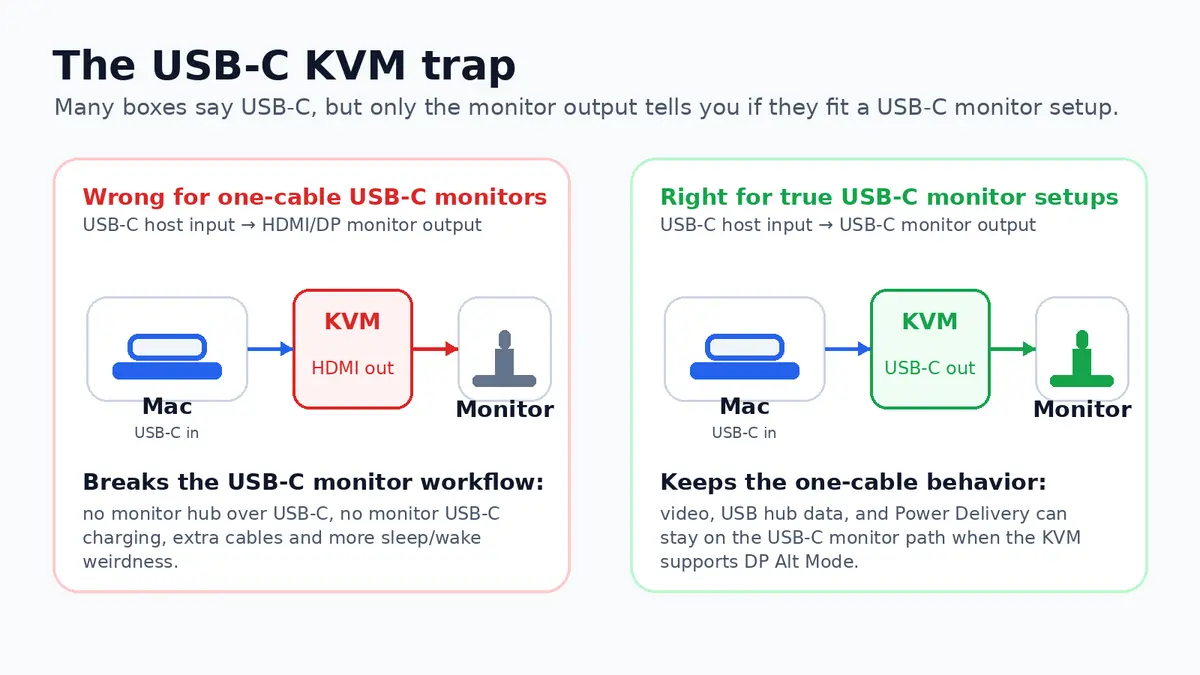
USB-C is only a connector shape. It does not tell you what a cable or device actually carries. A USB-C port might do data only, data + video via DisplayPort Alt Mode, data + video via Thunderbolt, power delivery, or any combination. Amazon listings exploit this confusion constantly.
Host input vs monitor output
Most “USB-C KVM” switches have USB-C inputs (you plug each computer in via USB-C) but the monitor output is HDMI or DisplayPort. That’s fine if your monitor has HDMI/DP. It’s not fine if you want to keep a single-cable USB-C connection to a monitor that provides video, USB hub, and charging in one cable.
What you need for a true one-cable setup is a KVM with USB-C monitor output (sometimes listed as “Type-C monitor output” or “USB-C DP Alt Mode output”). If a product page says “USB-C” but doesn’t mention DisplayPort Alt Mode or Thunderbolt, assume it does not support video passthrough. Move on.
DisplayPort Alt Mode vs Thunderbolt
USB-C video almost always works via DisplayPort Alt Mode, a separate protocol layered on top of the USB-C connector. Thunderbolt is different: it carries PCIe data alongside video, supports higher bandwidth, and is required for 5K displays and Thunderbolt-only displays like the Apple Studio Display. For a normal USB-C monitor at 4K 60Hz, DP Alt Mode is sufficient. For anything else, you need Thunderbolt-grade hardware.
Power Delivery wattage
A 13-inch MacBook Pro may be happy with 60W. A 14- or 16-inch MacBook Pro under load wants 90–100W or more. If a KVM only delivers 60W, your MacBook will charge slowly or drain under heavy use. The Mac mini doesn’t need PD at all. It has its own power supply.
The Built-In KVM Angle: Check Your Monitor First
Before you buy an external KVM, check whether your USB-C monitor already has a built-in KVM feature. Some USB-C monitors, especially ultrawides and productivity displays, can share their USB hub between two computers by selecting which upstream USB connection is active. If yours does this, you may not need to buy anything.
Real-world example: LG 34WQ73A-B
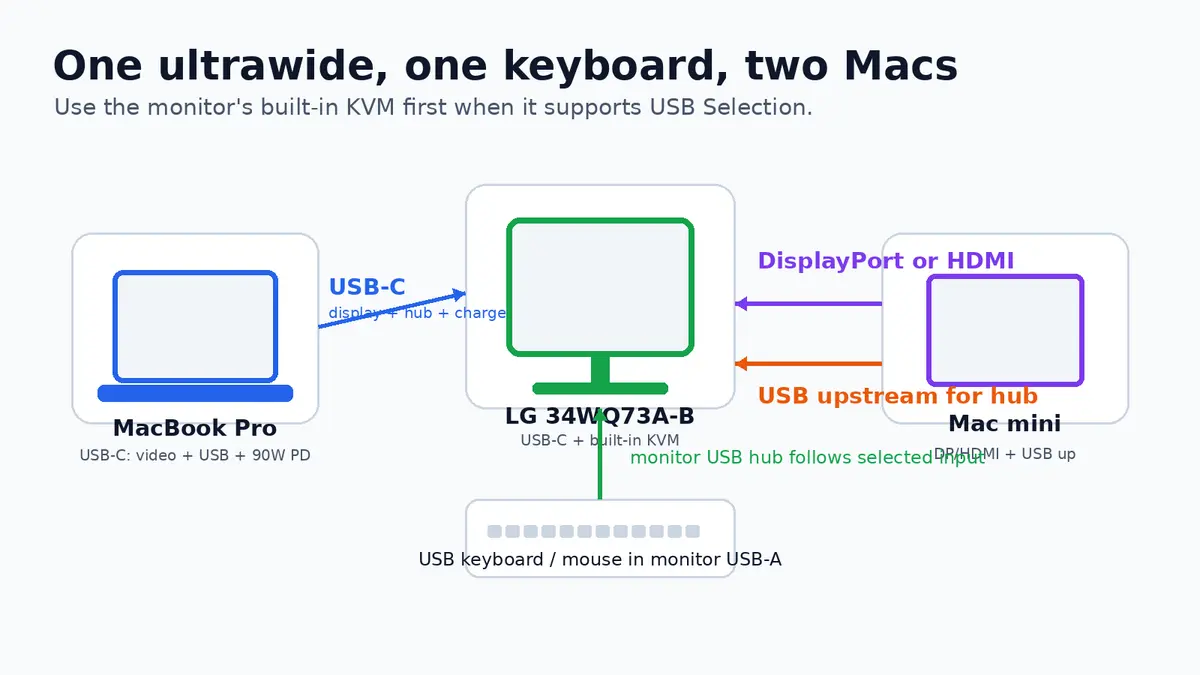
The LG 34WQ73A-B is a common productivity ultrawide that has this feature built in. It’s a 34-inch curved UltraWide QHD (3440 × 1440 @ 60Hz) IPS display with HDR10, USB-C input with 90W Power Delivery, and a built-in KVM switch.
Here’s what’s verified to work:
- MacBook Pro → single USB-C cable → LG monitor: Display, USB data, and 90W charging all work over one cable. No separate charger needed.
- USB keyboard → LG monitor USB-A port → LG USB-C → MacBook Pro: The monitor’s built-in USB hub passes keyboard input through to the MacBook Pro.
The LG’s built-in KVM works by selecting which upstream USB connection the monitor’s hub uses: either the USB-C upstream from the MacBook Pro or the USB-B upstream from the Mac mini. Switch via the monitor OSD under General → USB Selection, or assign the KVM Switch function to a monitor shortcut key.
The natural wiring for MacBook Pro + Mac mini with this monitor:
- MacBook Pro → LG USB-C (display + 90W charging + USB hub, one cable)
- Mac mini → LG DisplayPort or HDMI (video) + LG USB-B upstream (USB data)
- Keyboard and mouse → LG monitor’s downstream USB-A ports
Switch the monitor input and USB upstream selection together, and both display and peripherals follow to the other machine. No external KVM box needed.
The catch: switching requires a few OSD button presses or joystick clicks rather than a single hardware button. If that friction bothers you, or if you hit sleep/wake edge cases where the display doesn’t re-handshake cleanly, that’s when an external KVM becomes worth considering.
Built-in KVM monitors worth checking
If you like the LG built-in-KVM approach, the monitor itself becomes the product to shop for — not just an external KVM box. These are the kinds of USB-C monitors I would check first:
| Monitor | Why it fits this setup | Watch out for |
|---|---|---|
| LG 34WQ73A-B 34-inch UltraWide USB-C KVM monitor | The example setup in this guide: 3440 × 1440 ultrawide, USB-C with 90W PD, built-in KVM/USB Selection, and a USB hub for keyboard/mouse sharing. | 60Hz panel and OSD-based switching. Good productivity monitor, not a gaming-first display. |
| LG 34U650A-B 34-inch UltraWide USB-C monitor | Newer-looking LG ultrawide listing with 3440 × 1440, 100Hz, USB-C, and 96W PD. Worth comparing if the 34WQ73A-B price jumps or stock gets weird. | Verify the current listing/manual confirms KVM or USB upstream switching before buying; Amazon variants can blur model details. |
| Dell UltraSharp U3425WE 34-inch Thunderbolt hub monitor | Higher-end productivity pick: 34-inch curved ultrawide, Thunderbolt/USB-C hub behavior, 120Hz, and Dell’s business-monitor KVM ecosystem. | Much more expensive than the LG. Check Mac compatibility and whether you need Thunderbolt features before paying the premium. |
| BenQ PD3225U 32-inch 4K Thunderbolt monitor | Better if you want 4K creator color accuracy instead of an ultrawide. Amazon lists USB-C/Thunderbolt, 85W charging, USB hub, and KVM switch. | Not ultrawide, and it costs more. Pick this for color/workstation use, not just basic Mac switching. |
| Philips 346B1C 34-inch USB-C dock monitor | Philips documents a built-in MultiClient KVM switch, USB-C docking, Ethernet, and up to 90W USB-C Power Delivery. | Availability varies, so use the search link and verify the exact model number before buying. |
I would still start with the LG 34WQ73A-B if you want the same setup described here. The Dell and BenQ options are nicer monitors, but they are expensive enough that you should be buying them for the panel/hub quality too — not just for the KVM checkbox.
External KVM fallback for LG 34WQ73A-B owners
If the built-in KVM proves too clunky or you hit edge cases, the Cable Matters 20Gbps USB-C KVM (B0FBSQV19X) is the external candidate worth looking at. It’s a USB4/Thunderbolt 4-compatible switch with 140W PD passthrough, designed to share one USB-C or Thunderbolt 4 monitor between two computers at 4K 60Hz on macOS.
A few caveats: use the included cables (third-party cables are the #1 source of KVM failures), and if you have a dock with a non-removable attached cable, verify compatibility before buying. This is the fallback, not the first recommendation. Try the built-in KVM first — it’s already there, it’s free, and it keeps your one-cable workflow intact.
Best Setup for Most MacBook Pro + Mac mini Users
For a standard USB-C monitor with DisplayPort Alt Mode, a true USB-C monitor-output KVM should have all of the following:
- 2 USB-C host inputs (one for MacBook Pro, one for Mac mini)
- 1 USB-C video output to monitor (not HDMI, not DisplayPort; USB-C with DP Alt Mode)
- DisplayPort Alt Mode explicitly stated in the specs
- 4K @ 60Hz minimum (ultrawide or high-refresh needs per-product verification)
- 80–100W PD passthrough for the MacBook Pro (higher is better for 16-inch models)
- USB-A ports for wired keyboard and mouse
- External power supply (bus-powered KVMs often can’t deliver full PD)
Search for true USB-C monitor-output KVMs on Amazon →
Read every listing carefully. If the output column says HDMI or DisplayPort, keep scrolling. If it says “USB-C output” or “Type-C monitor output” with DP Alt Mode, you’ve found the right product.
When an HDMI/DisplayPort KVM is better
If your monitor has HDMI or DisplayPort inputs and you don’t need to preserve single-cable USB-C behavior, a standard USB-C host KVM with HDMI/DP output is a solid, practical choice: easier to find, usually cheaper, and more field-tested than the USB-C monitor-output category.
The tradeoff: your MacBook Pro will probably need its own charger, because the KVM may not pass full PD through. Your monitor’s built-in USB hub may also need a separate USB connection to one of the computers. It’s not the one-cable dream, but it works.
Search for USB-C host KVMs with HDMI/DP output →
Apple Studio Display Warning
If you’re using an Apple Studio Display or LG UltraFine 5K, read this before buying anything.
The Apple Studio Display connects via Thunderbolt, not generic USB-C. Cheap USB-C KVMs that rely on DisplayPort Alt Mode will not work. Expect no signal, flickering, or degraded resolution. The same applies to the LG UltraFine 5K and any Thunderbolt-only display.
For these displays, you need a Thunderbolt-specific KVM. If a product page doesn’t explicitly say “Thunderbolt” or “Studio Display” or “5K support,” assume it doesn’t work with your display.
Search for Thunderbolt KVM switches →
If you have a Studio Display and two Macs, the monitor-input-plus-USB-switch workaround below may save you a lot of money and headaches.
The Cheap, Reliable Workaround
Before dropping $200–$400 on a KVM, check your monitor’s inputs. If it has both USB-C and HDMI or DisplayPort:
- MacBook Pro → monitor USB-C (display + charging + USB hub in one cable)
- Mac mini → monitor HDMI or DisplayPort (video only; Mac mini has its own power)
- Keyboard and mouse → USB switch or multi-device peripherals
Switch monitor inputs via the OSD or joystick, switch keyboard and mouse via the USB switch button or multi-device pairing.
This is often more reliable than a KVM because nothing sits in the middle of the video signal path: no handshake issues, no sleep/wake weirdness, no EDID emulation artifacts. Each computer talks directly to the monitor.
- USB 3.0 switch for wired keyboard/mouse →
- Multi-device keyboards and mice (Logitech MX Keys, MX Master, etc.) →
Multi-device keyboards like the Logitech MX Keys pair with up to three devices and switch with a button press. If you’re already using one, you may only need to solve the video switching, which your monitor already handles.
Buying Checklist
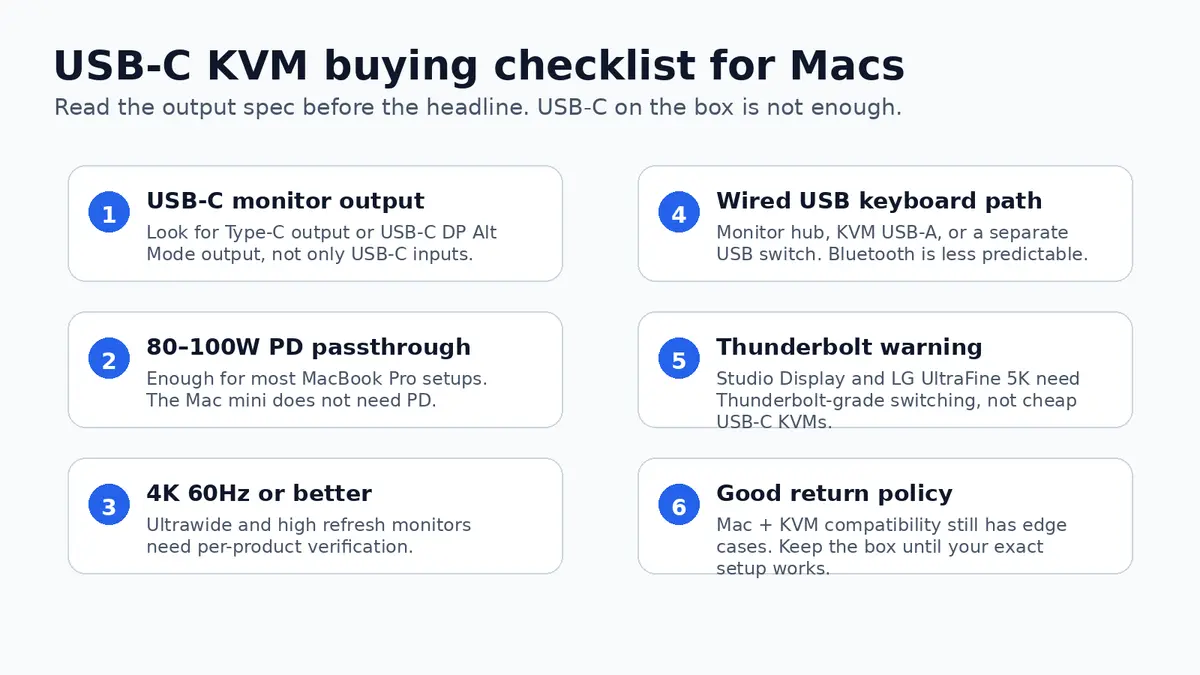
Before you click buy:
- Monitor type: USB-C with DP Alt Mode? HDMI/DP only? Thunderbolt/Studio Display? This determines which product category you need.
- Resolution and refresh: 4K 60Hz is the baseline. Ultrawide, 5K, or high-refresh needs extra verification per product.
- PD wattage: 60W is marginal for 14”/16” MacBook Pros under load. 90–100W is safer. Check what your specific model draws.
- Keyboard/mouse connectivity: Wired USB is most reliable with KVMs. Bluetooth keyboards can misbehave with some units, and Apple keyboard hotkeys can get weird.
- Cable quality: Use the cables that come with the KVM. Random USB-C cables from your drawer often don’t carry video or full PD. That’s the most common failure point.
- Return policy: Buy from somewhere with a no-hassle return window. Mac + KVM compatibility isn’t guaranteed, and you may need to try more than one.
FAQ
Can I use any USB-C KVM with a MacBook Pro?
No. Many “USB-C KVM” products take USB-C input from your computers but output HDMI or DisplayPort. If you need USB-C monitor output with DP Alt Mode, you have to specifically find a KVM that supports it. Read the specs, not just the headline.
Will a USB-C KVM charge my MacBook Pro?
Only if the KVM (or your monitor) supports Power Delivery passthrough with enough wattage. 60W may not be enough for 14-inch or 16-inch MacBook Pros under load. Look for 80–100W or higher. The Mac mini doesn’t need PD. It has its own power supply.
Will this work with Apple Studio Display?
Probably not with a cheap USB-C KVM. The Studio Display is a Thunderbolt display, not a generic USB-C monitor. You need Thunderbolt-specific switching hardware. If a product doesn’t explicitly mention Thunderbolt or Studio Display compatibility, assume it won’t work.
Is Thunderbolt the same as USB-C?
No. USB-C is the connector shape. Thunderbolt is a protocol that uses the USB-C connector but carries PCIe data alongside video and supports higher bandwidth. Thunderbolt 4 ports support USB-C devices, but USB-C ports don’t necessarily support Thunderbolt devices. For 5K displays and Thunderbolt docks, you need Thunderbolt-grade hardware.
Can I share a USB-C monitor’s built-in hub through a KVM?
Sometimes. A true USB-C monitor-output KVM that carries USB data alongside video should pass the hub through, but behavior varies by product combination. If your monitor has a built-in KVM feature, like the LG 34WQ73A-B, try that first. It’s often a cleaner solution than any external KVM.
Is a USB switch better than a KVM?
It can be. If your monitor has multiple inputs, running each Mac to a separate input and using a USB switch for peripherals removes the KVM from the video signal path entirely. No handshake issues, no sleep/wake problems, no video emulation artifacts. The tradeoff is manual monitor input switching and potentially a separate charger for one machine.
Why does my monitor go black when switching?
This is a display handshake issue. When a KVM switches, the monitor briefly loses signal and has to re-establish the connection with the newly selected computer. Macs are particularly sensitive to this: displays can reshuffle, windows can move, or the monitor may fail to wake entirely. Quality cables, wired USB peripherals, and avoiding KVMs that aggressively emulate EDID can help. If it’s persistent, the monitor-input-plus-USB-switch workaround is usually more stable.
Wrapping Up
Your monitor determines everything. A true USB-C monitor-output KVM with PD passthrough is the cleanest solution for standard USB-C monitors. A built-in monitor KVM, like the one on the LG 34WQ73A-B, may eliminate the need for an external box entirely. An HDMI/DP KVM is cheaper and more mature if you don’t need single-cable USB-C behavior. For Studio Display or Thunderbolt display owners, cheap USB-C KVMs are the wrong tool; look at Thunderbolt switching or use monitor input switching instead.
Whatever you buy, keep the return window open. Mac + KVM compatibility has enough edge cases that testing in your actual setup is the only real confirmation.
Related Reading