
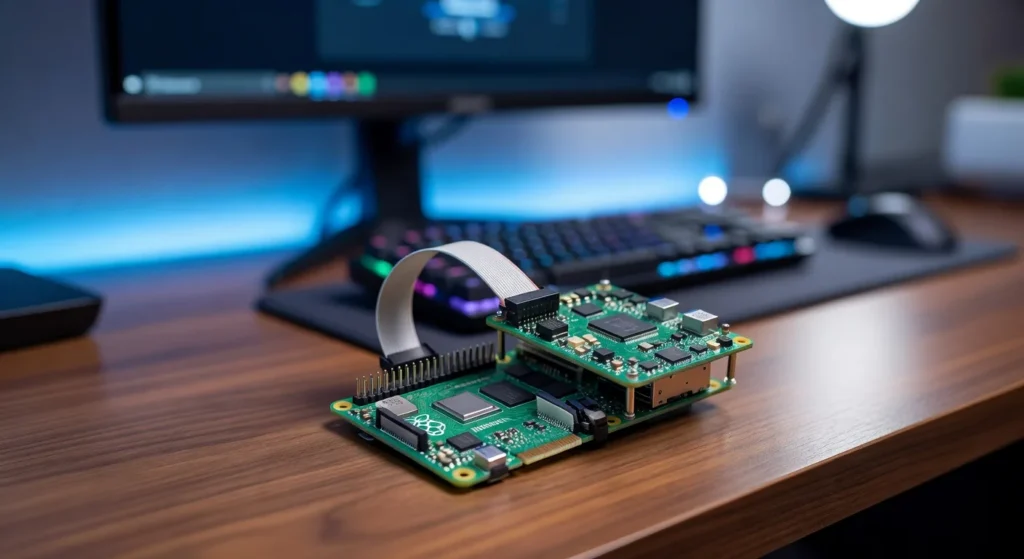
How to Run AI Agents on a Raspberry Pi 5 (Ollama, Hailo, and What Actually Works)
You can run real AI agents on a Raspberry Pi 5 today. The CPU path uses Ollama with small models like Llama 3.2 1B or 3B for chat and tool calling at usable speeds. The accelerated path adds the Hailo AI HAT+ for fast on-device vision. Pick CPU for text agents; add Hailo for camera work.
Below is the realistic setup, what performance looks like based on the public benchmark trail (Jeff Geerling, Ollama GitHub issues, r/LocalLLaMA threads, the official Raspberry Pi AI docs), and where the Pi 5 hits a wall. If you’ve tried to run a 7B model on a Pi 5 4GB off an SD card and walked away thinking the board was broken, you’re not alone. The hardware combination matters more than the software. A Pi 5 8GB or 16GB on NVMe with an Hailo AI HAT+ is what turns this from a science project into something you’d actually leave running.
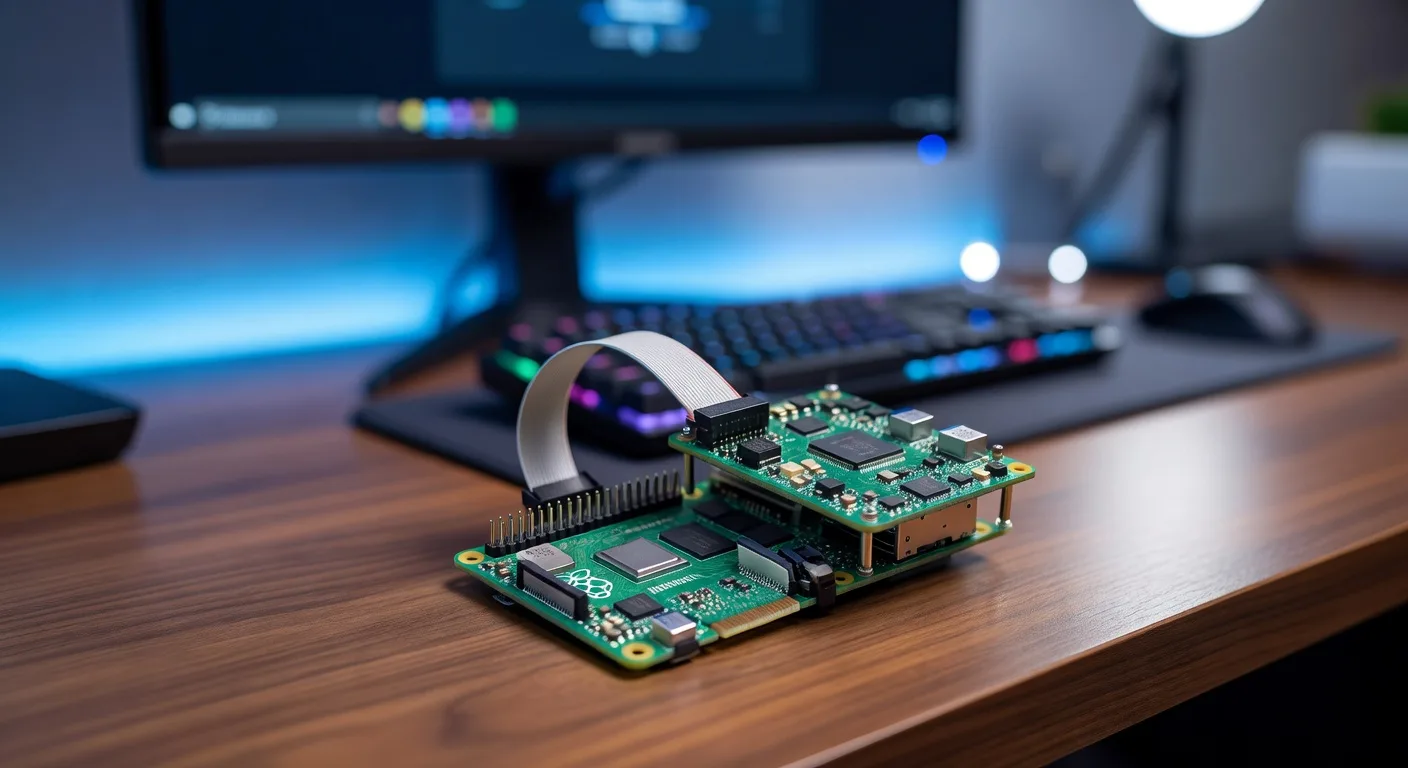
What an AI Agent Actually Is
Before we get into the setup, it’s worth being precise about what an “AI agent” is, because the term gets thrown around for everything from a chatbot to a Roomba.
An LLM by itself just predicts the next word. You ask it a question, it answers, conversation over. An agent is an LLM with two extra ingredients: tools it can call, and a loop that lets it use those tools, look at the results, and decide what to do next. That’s it. The same Llama 3.2 model that just writes you a poem becomes an agent the moment you give it a get_temperature() function and let it call that function before answering.
In practice on a Pi 5, an agent looks like a Python script that holds a chat history, exposes a few functions (read a sensor, search a folder, hit a webhook), and runs in a loop until the model says it’s done. Frameworks like Smolagents from Hugging Face and LangChain handle the plumbing. You bring the model and the tools.
Which Path Is Right for You: Ollama vs Hailo
There are two ways to run AI on a Pi 5, and most tutorials online only cover one. Here’s the honest split.
Pick Ollama (CPU only) if you want a local chatbot, a text-based agent that calls tools, document Q&A over a small folder, or a Home Assistant voice helper. Anything where the model is generating tokens of text. The Pi 5’s four Cortex-A76 cores handle 1B to 3B models surprisingly well, and you can stretch to 7B if you’re patient.
Pick the Hailo AI HAT+ if you want real-time computer vision, object detection on a camera feed, pose estimation, or any continuous inference task where latency matters more than language understanding. The Hailo-8L on the AI HAT+ runs at 13 TOPS, the Hailo-8 on the bigger HAT runs at 26 TOPS, and both crush the CPU for vision workloads. The catch: the Hailo runs compiled vision models, not LLMs. You can’t load Llama onto it.
Run both if you’re building something interesting, like a security camera that detects motion on the Hailo, then asks a local LLM via Ollama to describe what it saw. That’s the combination this article is built around, and it’s where the Pi 5 starts to feel like a tiny edge AI server.
What You’ll Need
For the CPU-only path, the minimum is a Pi 5 4GB. The realistic minimum is the 8GB, and if you want any breathing room with 7B models, get the Pi 5 16GB. The extra RAM matters more than anything else on this board.
You’ll want active cooling. Sustained AI workloads pin all four cores at 100% for minutes at a time, and a Pi 5 with no cooler will thermal throttle within minutes (Raspberry Pi Foundation puts the throttle threshold at 80°C). The official Active Cooler is fine, the Pironman 5 is overkill in a good way, and if you’re already shopping for a case, you’ll want active cooling baked in.
Storage matters too. SD cards die under sustained model loading, and they cap your read speed at around 100 MB/s, which means a 4GB model takes 40+ seconds just to page into RAM. A 1TB NVMe like the Crucial P3 Plus on a PCIe HAT brings that down to under five seconds and stops the SD wear-out problem cold.
If you’re going the accelerated route, grab the Raspberry Pi AI Kit (Hailo-8L bundled with the M.2 HAT) or the standalone AI HAT+ if you want the 26 TOPS Hailo-8.
Step-by-Step: Ollama on a Pi 5
On a Pi 5 16GB this path takes about 20 minutes once the hardware is assembled. Both 8GB and 16GB work; 16GB is the move if you plan to run 7B+ models comfortably.
1. Flash a fresh Raspberry Pi OS 64-bit
Use Raspberry Pi Imager, pick Bookworm 64-bit, and enable SSH plus your WiFi in the imager settings. Don’t try this on the 32-bit OS. Ollama needs 64-bit and so do half the model runtimes.
2. Boot from NVMe if you have one
In raspi-config, set the boot order to NVMe first. The speed difference for model loading is night and day. If you’re still on SD, at least use a fast A2-rated card and accept the loading delay.
3. Install Ollama
curl -fsSL https://ollama.com/install.sh | sh
That’s it. The installer detects ARM64, pulls the right binary, and starts a systemd service. Verify with ollama --version.
4. Pull a small model
Start with llama3.2:1b to confirm everything works:
ollama pull llama3.2:1b
ollama run llama3.2:1b "Why is the sky blue?"
You should see tokens streaming out at conversational speed on a healthy Pi 5 16GB. Community benchmarks for Llama 3.2 1B Q4 on Pi 5 typically land in the high teens to low twenties of tokens per second; the exact number depends on cooling, power, and storage. If it’s painfully slow, check that your cooler is on and your power supply is the official 27W USB-C. Undervoltage will cripple performance silently.
5. Step up to a 3B model
ollama pull llama3.2:3b
ollama pull qwen2.5:3b
3B is the sweet spot on a Pi 5. Good enough to follow instructions, call tools, and answer real questions. Slow enough that you’ll know it’s a Pi.
6. Enable the REST API
Ollama exposes a local API at http://localhost:11434 automatically. To access it from another machine on your network, edit the systemd service to bind on 0.0.0.0 instead of 127.0.0.1. Now your Pi is a tiny inference server.
Realistic Tokens Per Second on a Pi 5
Pi 5 LLM benchmarks shift every few months as llama.cpp and Ollama optimize, so treat any specific number you read (including the ranges below) as a snapshot. The ranges here are gathered from public benchmark posts on r/LocalLLaMA, Jeff Geerling’s Pi 5 LLM testing, and discussions on the Ollama GitHub. Always check current threads before buying hardware on a specific tokens-per-second target.
| Model | Pi 5 8GB (Ollama, CPU) | Pi 5 16GB (Ollama, CPU) | With Hailo AI HAT+ (vision) |
|---|---|---|---|
| Llama 3.2 1B (Q4) | conversational speed | conversational speed | n/a (LLMs run on CPU) |
| Llama 3.2 3B (Q4) | usable, slower than 1B | usable, slower than 1B | n/a |
| Qwen 2.5 3B (Q4) | usable, similar to Llama 3B | usable, similar to Llama 3B | n/a |
| Mistral 7B (Q4) | slow, “ask and walk away” | slow, “ask and walk away” | n/a |
| Llama 3.1 8B (Q4) | tight on RAM, may swap | runs, but slow | n/a |
| YOLOv8n (object detect, 640×640) | single-digit FPS (CPU) | single-digit FPS (CPU) | real-time at 1080p (Hailo) |
| YOLOv8s (object detect, 640×640) | very slow (CPU) | very slow (CPU) | real-time at 1080p (Hailo) |
The honest read: a 1B model on a Pi 5 16GB is fast enough to feel responsive, a 3B model is fine for agents that don’t need to stream long outputs, and anything 7B or larger is a batch-job tool, not an interactive one. The Hailo column is where the Pi 5 stops being a toy and turns into legitimate edge hardware for vision.
Step-by-Step: Hailo AI HAT+ for Vision
If you got the AI Kit or the standalone HAT, here’s the wiring and software setup.
1. Mount the HAT
The AI HAT+ uses the PCIe ribbon cable that comes in the box. Pi 5 powered off, ribbon seated on both ends, standoffs through the GPIO. The HAT sits over the SoC, which is why you’ll want active cooling underneath, not over the top.
2. Enable PCIe Gen 3
In /boot/firmware/config.txt, add:
dtparam=pciex1
dtparam=pciex1_gen=3
The HAT will work at Gen 2 but you’re leaving throughput on the table.
3. Install the Hailo software stack
sudo apt update
sudo apt install hailo-all
sudo reboot
After reboot, verify with hailortcli fw-control identify. You should see the chip detected.
4. Pull the demo pipelines
Hailo ships hailo-rpi5-examples on GitHub with detection, pose estimation, and segmentation demos.
git clone https://github.com/hailo-ai/hailo-rpi5-examples.git
cd hailo-rpi5-examples
./compile_postprocess.sh
source setup_env.sh
python basic_pipelines/detection.py --input rpi
If you have a Pi camera attached, you should see object detection running at 30+ FPS in a preview window. That’s the moment the AI HAT+ earns its keep.
A Real AI Agent Example: Document Q&A on the Pi
Here’s a small but real agent that runs locally on a Pi 5 16GB. It loads a folder of Markdown notes, indexes them, and answers questions by calling a search_notes tool. No cloud. No API keys.
Install dependencies:
pip install smolagents ollama chromadb
The script (call it notes_agent.py):
from smolagents import CodeAgent, LiteLLMModel, tool
from pathlib import Path
import chromadb

# Index notes
client = chromadb.PersistentClient(path="./notes_db")
collection = client.get_or_create_collection("notes")

notes_dir = Path("/home/pi/notes")
for f in notes_dir.glob("*.md"):
    collection.upsert(
        ids=[f.name],
        documents=[f.read_text()],
        metadatas=[{"path": str(f)}],
    )

@tool
def search_notes(query: str) -> str:
    """Search the user's notes for relevant passages.

    Args:
        query: A natural-language search query.
    """
    results = collection.query(query_texts=[query], n_results=3)
    return "\n\n".join(results["documents"][0])

# Point at local Ollama
model = LiteLLMModel(
    model_id="ollama/llama3.2:3b",
    api_base="http://localhost:11434",
)

agent = CodeAgent(tools=[search_notes], model=model)
print(agent.run("What did I write about backup strategy?"))
Run it, and the agent will decide on its own to call search_notes("backup strategy"), look at the returned passages, and write you an answer that quotes your own notes. That’s an agent. Same pattern works for a Home Assistant trigger (“turn off the lights if nobody’s home and the temperature is dropping”), a calendar helper, or a webhook dispatcher.
Power and Thermal Cost of Running This 24/7
People skip this section. Don’t.
Per Raspberry Pi Foundation documentation, a Pi 5 idles in the low single-digit watt range and peaks in the low double digits under sustained four-core load. Stacking an AI HAT+ on top pushes the ceiling a few watts higher when both are working. Even at the high end, leaving one of these running 24/7 is cents per day, not dollars.
The thermals are where you have to pay attention. The Pi 5 starts throttling around 80°C per Raspberry Pi Foundation specs, and without active cooling an LLM workload will hit that ceiling fast. Community thermal tests of sustained LLM inference consistently show the official Active Cooler keeping the chip below the throttle threshold, and tower-cooler enclosures like the Pironman 5 running cooler still. The bigger the cooler, the more headroom you have before the chip throttles, and the more consistent your tokens per second.
If you’re stacking the AI HAT+ on top, plan the airflow. The HAT covers the SoC, so a heatsink-only solution traps heat. You want a cooler that pushes air sideways across the HAT, not down through it.
Where the Pi 5 Hits a Wall
The Pi 5 is a great little AI box, but it’s not magic.
It can’t run 13B models in a useful way. They technically load with enough swap, but tokens per second drop into “watch grass grow” territory. Anything above 7B is a stretch.
It has no GPU you can use for LLMs. The VideoCore VII is great for display, useless for tensor math. No CUDA, no ROCm. The Hailo is fixed-function for vision, not a general accelerator.
Training is off the table. Small LoRA fine-tunes work if you’re patient, but they take days. Train on a desktop GPU and ship the model to the Pi for inference.
If AI is your only focus, a Jetson is probably the better buy. The Jetson Orin Nano Super has a real GPU, and NVIDIA’s published Jetson benchmarks put 7B-class LLMs well ahead of what the Pi 5 CPU can do, at a price that lands close to a fully-accessorized Pi 5 + HAT build. The Pi 5 wins on community and the dozens of other things you can do with it that aren’t AI, which matters once you start doing more complex Pi projects beyond the easy ones.
A Smarter Hardware Bundle for AI on the Pi 5
If I were starting fresh tomorrow and wanted agents plus vision, here’s the shopping list:
A Raspberry Pi 5 16GB for the brain. The 8GB works, but the 16GB lets a model stay resident in RAM with room left for embeddings and services.
The official Active Cooler or a Pironman 5 chassis. Keeps your tokens per second consistent under sustained load.
A 1TB NVMe like the Crucial P3 Plus on a PCIe HAT. Loading from NVMe versus SD is the difference between “feels fast” and “feels like a Pi from 2015.”
A Hailo AI HAT+ if vision is part of the build, plus a Pi Camera Module 3 to feed it.
Total runs $300-400 depending on case and camera. A lot for a Pi, very little for a dedicated edge inference box.
Frequently Asked Questions
Can a Raspberry Pi 5 run ChatGPT locally?
Not the actual GPT-4 model. That’s a closed proprietary model with hundreds of billions of parameters and it physically won’t fit. What you can run locally is an open model like Llama 3.2 or Qwen 2.5 in the 1B to 7B range, which gives you ChatGPT-like text generation for chat, summarization, and tool calling. It’s not as smart as GPT-4, but it’s yours, it’s offline, and it’s free.
How fast is Llama 3 on a Raspberry Pi 5?
Per public community benchmarks, Llama 3.2 1B at Q4 runs at conversational speed on a Pi 5 16GB with active cooling and NVMe storage. Llama 3.2 3B is usable but slower, and Llama 3.1 8B at Q4 runs but feels closer to a batch job than a chat. Specific tokens-per-second numbers shift with each llama.cpp/Ollama release, so check r/LocalLLaMA or the Ollama GitHub before buying hardware on a fixed target.
Do I need the Hailo AI HAT+ to run AI on a Pi 5?
No. Ollama runs on the CPU alone and is plenty for text models up to about 7B parameters. You only need the Hailo if you’re doing computer vision (object detection, pose estimation, segmentation) and want real-time frame rates from a camera. The two are complementary, not alternatives.
Will the Pi 5 throttle when running an LLM?
Without active cooling, yes, and quickly. The Pi 5 throttles starting at 80°C per Raspberry Pi Foundation specs, and a bare board hits that ceiling under sustained inference. With the official Active Cooler, community thermal tests typically show the Pi 5 staying well below the throttle threshold under sustained 3B inference. Tower coolers like the Pironman 5 run cooler still. Always run with active cooling for AI workloads.
Can I fine-tune a model on a Pi 5?
You can do small LoRA fine-tunes but you’ll wait a long time. The Pi 5 has no GPU and no fast tensor math. For practical purposes, train on a desktop with a GPU (or a cloud instance) and run inference on the Pi.
What’s the cheapest setup that actually works?
Pi 5 8GB, official Active Cooler, a fast A2 SD card, and the official 27W power supply. Run Llama 3.2 1B or 3B with Ollama. Total cost around $130, and you’ve got a real local AI box.
Final Take
The Pi 5 is the first Raspberry Pi where running real AI agents is a normal afternoon project rather than a research paper. Ollama handles the LLM side cleanly, the Hailo AI HAT+ handles the vision side at speeds the CPU can’t touch, and Smolagents glues them into something that actually does useful work. You won’t replace your GPU rig with one, but you don’t need to. For a 24/7, low-power, always-on agent that lives on your network and doesn’t phone home, the Pi 5 is the move.
Start small with a 1B model and a couple of tools. Add the Hailo when you want vision. Add the 16GB and the NVMe when you’re tired of waiting. The whole thing scales gracefully with how much you actually use it, which is the most Pi thing about the whole setup.